
1602 LCD Display Keypad Shield User’s Guide:
1. Overview
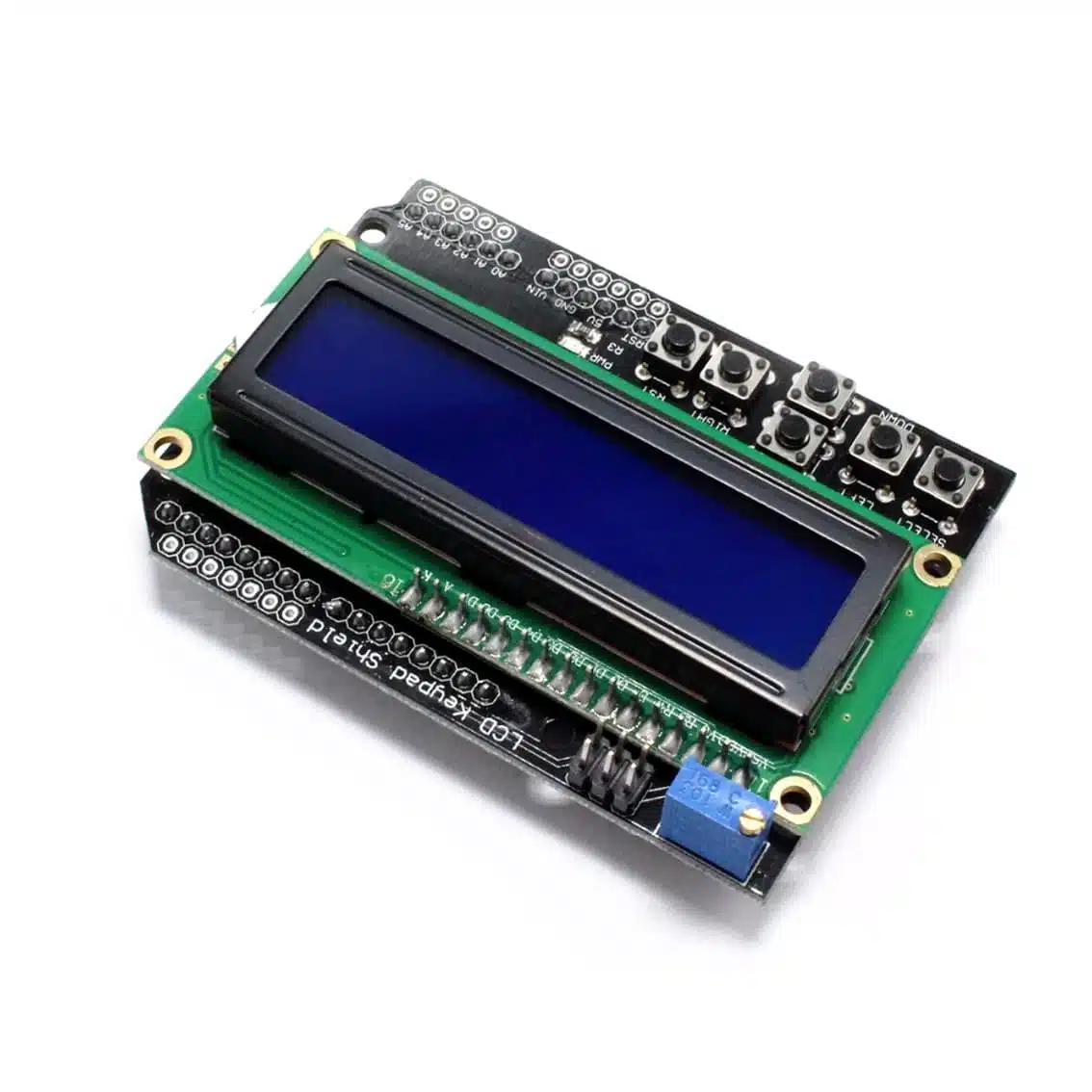
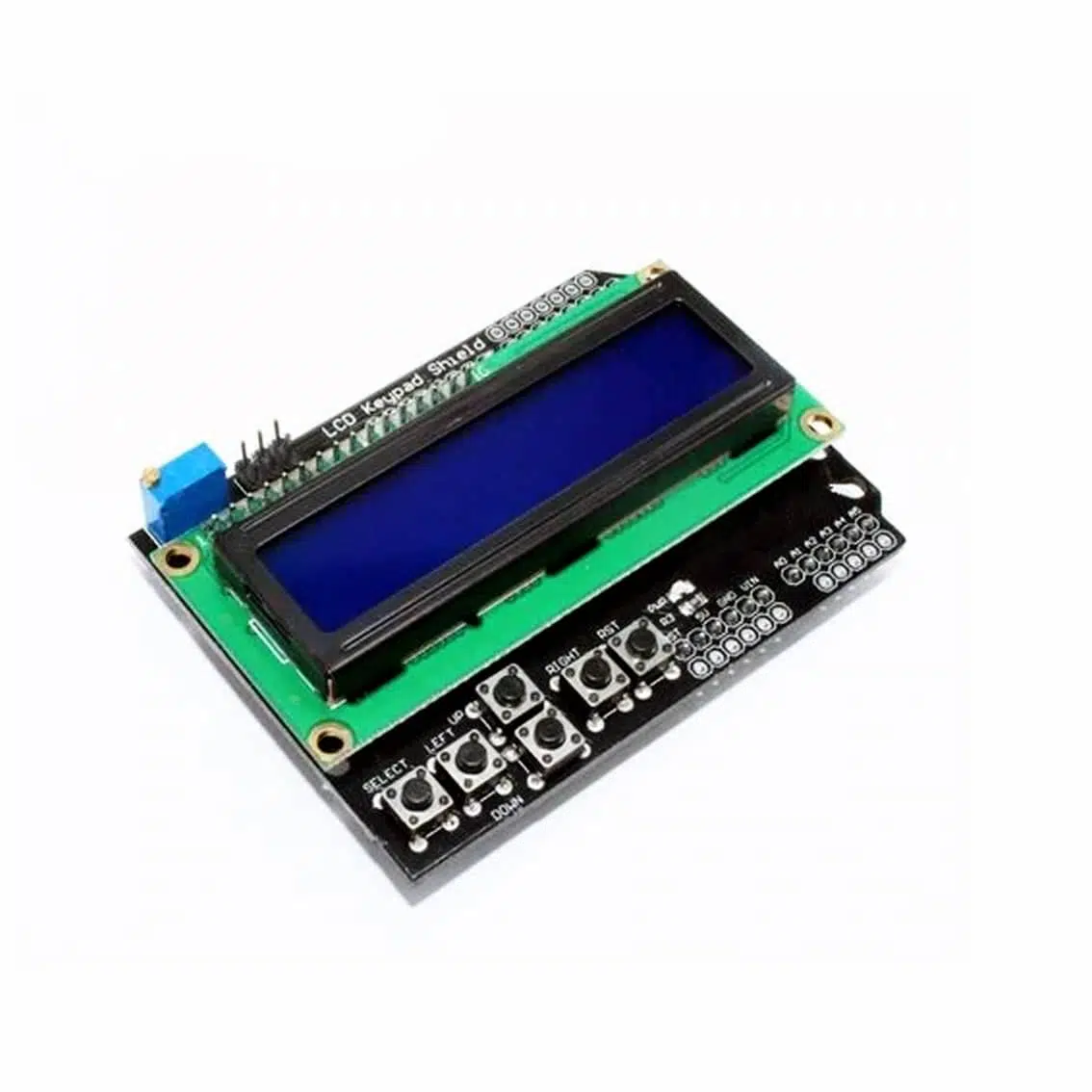
The 1602 LCD Keypad Shield integrates:
- A 16×2 LCD display (HD44780‑compatible controller).
- A 5‑button keypad (UP, DOWN, LEFT, RIGHT, SELECT).
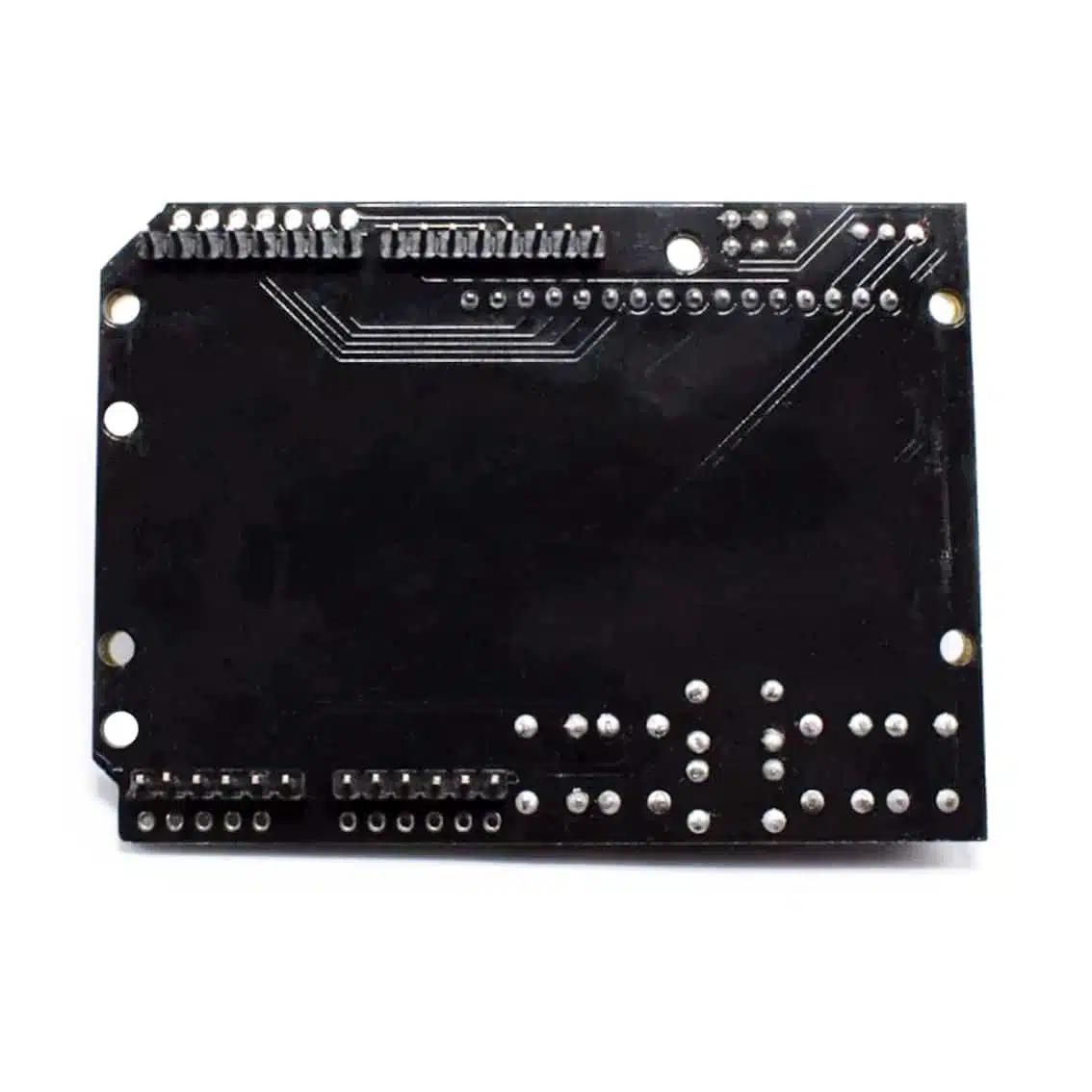
- Direct plug‑in design for Arduino UNO and similar boards.
- Uses digital pins D4–D10 for LCD control and A0 for keypad input.
This makes it ideal for menu navigation, data display, and interactive projects without extra wiring.
2. Pin Assignments
The shield uses fixed Arduino pins:
| Function | Arduino Pin |
|---|---|
| LCD RS | D8 |
| LCD EN | D9 |
| LCD D4 | D4 |
| LCD D5 | D5 |
| LCD D6 | D6 |
| LCD D7 | D7 |
| LCD Backlight | D10 |
| Keypad (UP/DOWN/LEFT/RIGHT/SELECT) | A0 (analog input) |
3. How It Works
- LCD: Standard 16×2 character display controlled via 4‑bit parallel mode.
- Keypad: All 5 buttons are connected through a resistor ladder to A0. Each button press produces a unique analog voltage, which the Arduino reads to determine which button is pressed.
4. Wiring
No external wiring is needed — simply plug the shield onto the Arduino UNO.
Optional: You can jumper D10 to disable/enable backlight control.
5. Arduino Code Example
#include <LiquidCrystal.h>

// LCD pin mapping
LiquidCrystal lcd(8, 9, 4, 5, 6, 7);

void setup() {
  lcd.begin(16, 2); // 16 columns, 2 rows
  lcd.print("Hello, World!");
}

void loop() {
  int x = analogRead(A0); // read keypad

  lcd.setCursor(0, 1); // second line
  if (x < 50) {
    lcd.print("RIGHT ");
  } else if (x < 250) {
    lcd.print("UP    ");
  } else if (x < 450) {
    lcd.print("DOWN  ");
  } else if (x < 650) {
    lcd.print("LEFT  ");
  } else if (x < 850) {
    lcd.print("SELECT");
  } else {
    lcd.print("NONE  ");
  }
}
6. Applications
- Menu navigation for embedded projects
- Data entry/display (sensor values, status messages)
- Interactive control panels for robotics or DIY kits
- Educational projects (learning LCD + keypad integration)
7. Best Practices
- Use the LiquidCrystal library for easy LCD control.
- Debounce keypad inputs in software if needed.
- Keep backlight enabled only when necessary to save power.
- Combine with EEPROM or SD card for menu‑driven data logging.
- For larger projects, pair with custom menus using libraries like LCDMenuLib2.