Phipps Electronics

Order within the next 

FREE SHIPPING OVER $199

50,000+ ORDERS

WORLDWIDE SHIPPING

SSL SECURED

Create a Simple Arduino Alarm Clock

Contents

Learn to create a simple DIY alarm clock for your Arduino UNO using off-the-shelf components along with an Arduino UNO protoshield.

Introduction

An Arduino UNO is truly a significant piece of learning module. Not only will you be able to create code with it, but you can also pair it up with another circuit. The circuit discussed here is a simple alarm clock. This clock circuit can be neatly integrated on top of your Arduino UNO using an Arduino proto shield.

The Alarm Clock Circuit

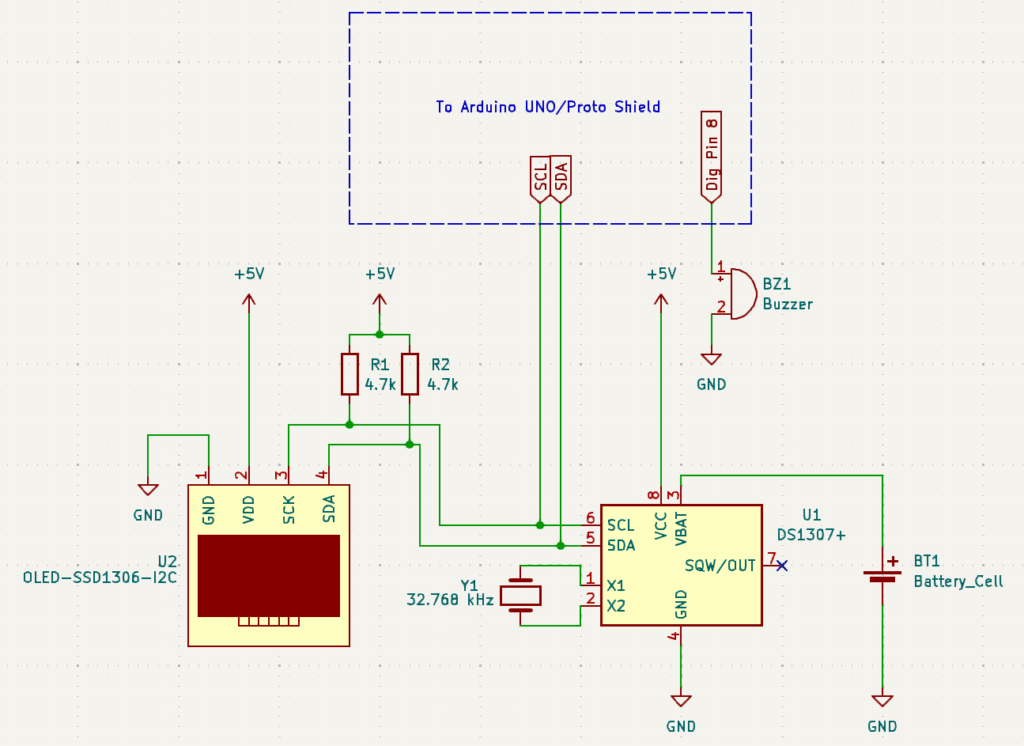
Arduino Alarm Clock Schematic

Making an alarm clock with an Arduino UNO is not that hard because you can incorporate additional discrete devices that can help you with your setup. Such a device, like a DS1307 RTC (Real-Time Clock) IC, already generates clock data. You’ll just need to extract these contents serially through I2C. Next, you’ll need additional passive components, a display device such as an SSD1306 OLED, a buzzer, etc. Don’t forget to include a battery for your RTC so that it can continue counting the clock even if you power off your circuit.

Parts List

  • DS1307 RTC (Real Time Clock IC).
  • SSD1306 – 128×32 (or 128×64) OLED display.
  • 2 pcs 4.7 k pull-up resistors
  • 32.768 kHz crystal oscillator
  • 5V mini Active Buzzer
  • CR2032 Battery holder
  • CR2032 battery
  • Jumper wires
  • Arduino Proto Shield
  • Arduino UNO
  • optional Breadboard

Build your Alarm CLock Circuit

On top of a breadboard

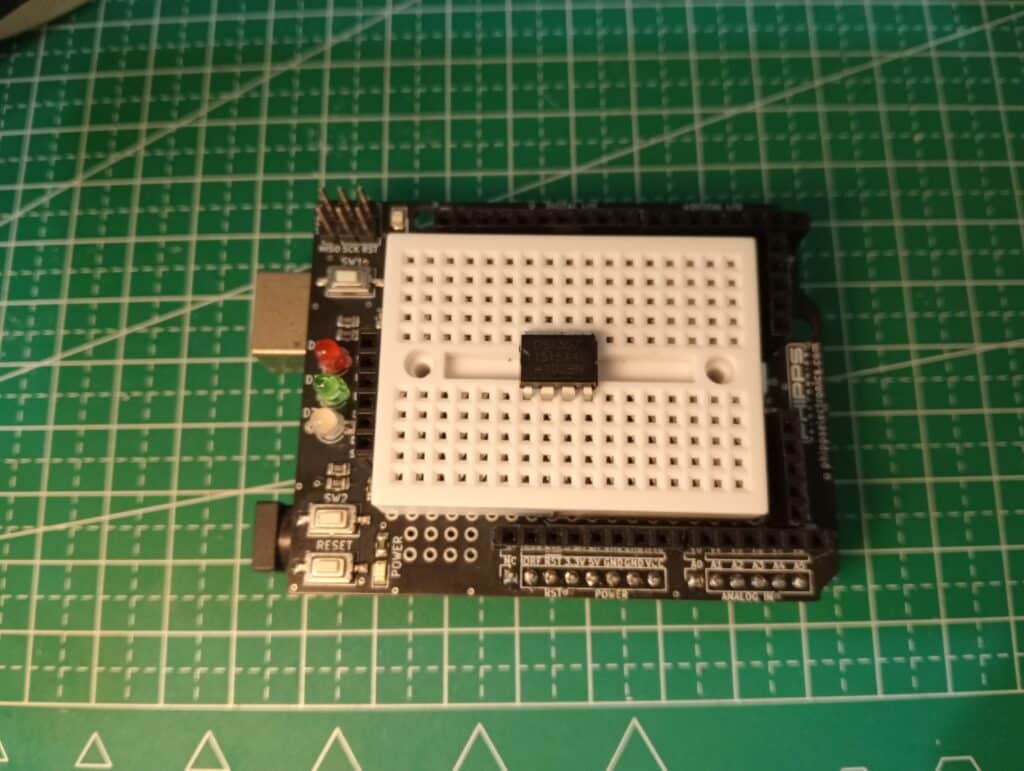
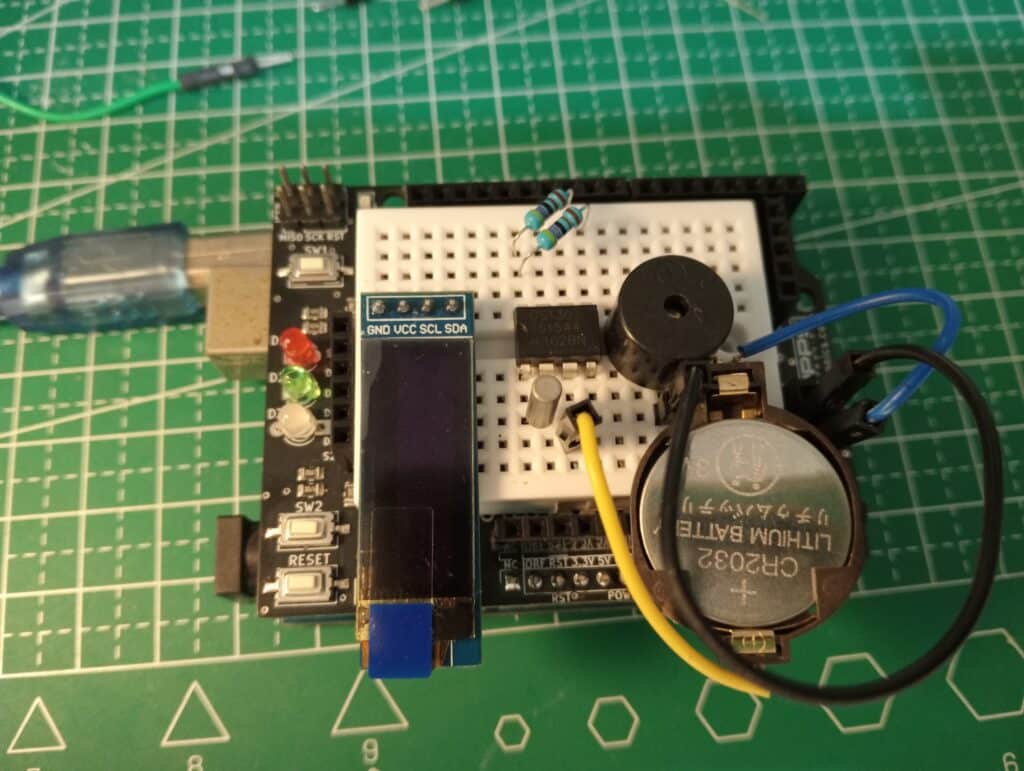
Before making your circuit permanent, you may want to test it out on a breadboard. If you have an UNO prototype shield, you can build on top of it using a mini SYB-170 breadboard. See below for an example of this.

Arduino Proto Shield w/ Mini Breadboard
Arduino Alarm Clock Breadboard

Soldered ON an Arduino UNO Protoshield

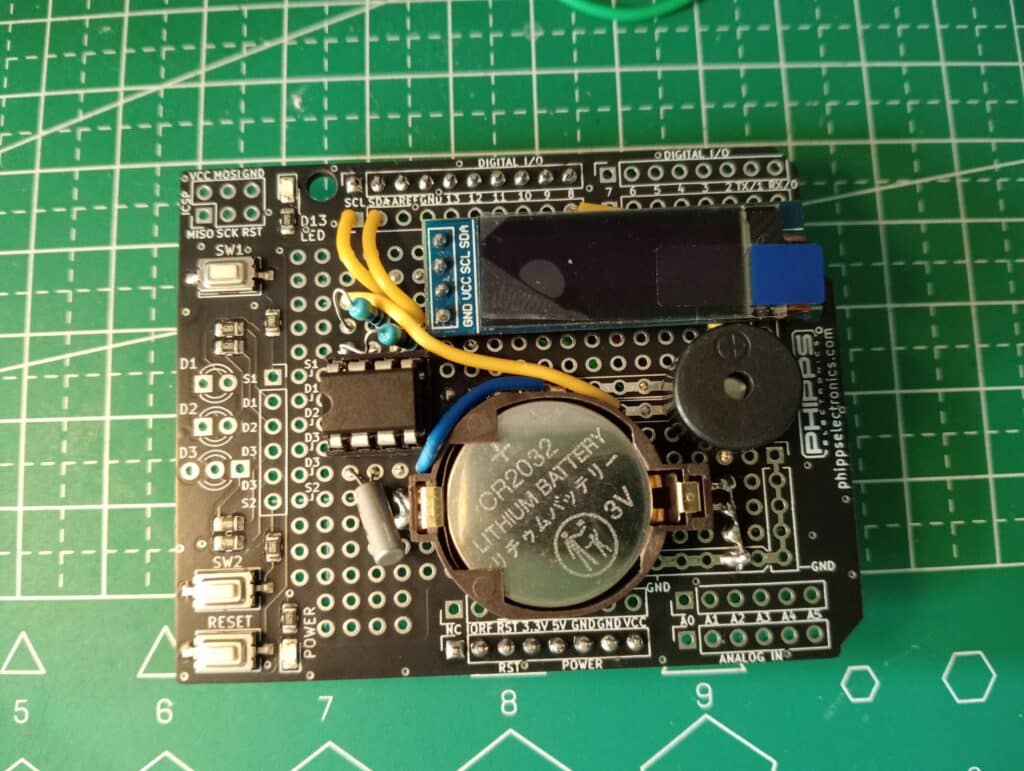
If you’d like to make your circuit neat to look at and also permanent, then you can solder it directly on the proto shield.

Arduino Alarm Clock Soldered on Proto Shield

Alarm Clock Code

ChatGPT can offer instant code for this circuit. Here is the code generated for the alarm clock using RTClib, Adafruit_SSD1306, and Adafruit_GFX libraries for the Arduini IDE.

				
					#include <Wire.h>
#include <RTClib.h>
#include <Adafruit_GFX.h>
#include <Adafruit_SSD1306.h>

#define SCREEN_WIDTH 128
#define SCREEN_HEIGHT 32
#define OLED_RESET    -1
Adafruit_SSD1306 display(SCREEN_WIDTH, SCREEN_HEIGHT, &Wire, OLED_RESET);

RTC_DS1307 rtc;
const int buzzerPin = 8;  // Change to your buzzer pin

int alarmHour = 8;  // Set alarm hour (24-hour format)
int alarmMinute = 20; // Set alarm minute

void setup() {
    Serial.begin(9600);
    Wire.begin();
    rtc.begin();
    pinMode(buzzerPin, OUTPUT);
  
    if (!rtc.isrunning()) {
        Serial.println("RTC is NOT running, setting the time!");
        rtc.adjust(DateTime(F(__DATE__), F(__TIME__))); // Set RTC to compile time
    }

    if (!display.begin(SSD1306_SWITCHCAPVCC, 0x3C)) { 
        Serial.println("OLED display failed to initialize.");
        for (;;);
    }

    display.display();
    delay(2000);
    display.clearDisplay();
}

void loop() {
    DateTime now = rtc.now();
    display.clearDisplay();
    display.setTextSize(1);
    display.setTextColor(SSD1306_WHITE);
    display.setCursor(0,0);
    display.print("Time: ");
    display.print(now.hour());
    display.print(":");
    display.print(now.minute());
    display.print(":");
    display.print(now.second());
  
    display.setCursor(0, 16);
    display.print("Alarm: ");
    display.print(alarmHour);
    display.print(":");
    display.print(alarmMinute);
  
    display.display();

    if (now.hour() == alarmHour && now.minute() == alarmMinute) {
        tone(buzzerPin, 1000);
        delay(5000);
        noTone(buzzerPin);
    }

    delay(1000);
}


As you can see above in setup(), after the ports are initialized, the RTC is checked to see if it’s already running. If it’s running, then the current time value is fetched there. If not, then the actual time is initialized at the time of compilation. If you want to re-initialize the time, it’s best to take out the RTC chip during programming and then press reset immediately on first run.

On the loop(), the actual time is fetched from the RTC and then displayed on the OLED. An alarm sounds through the buzzer if the alarm matched the current time.

Actual Alarm CLock Run

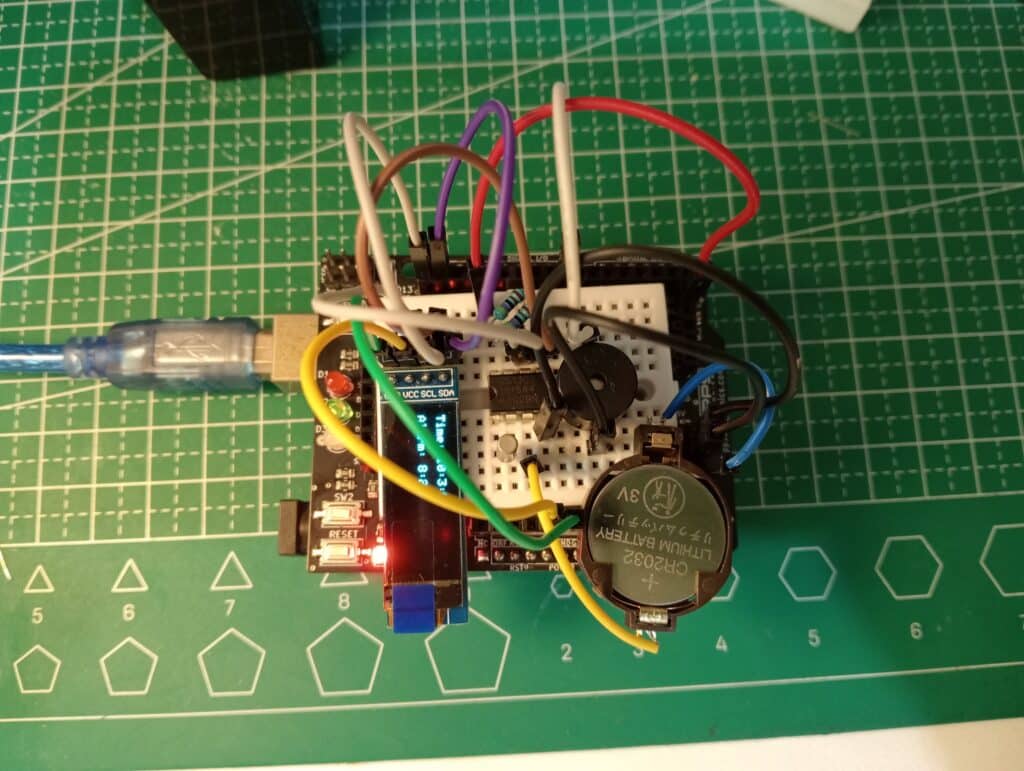
Here is the actual alarm clock run on a breadboard.

While here is the actual alarm clock run soldered on an UNO proto shield.

SUBSCRIBE FOR NEW POST ALERTS

Subscribe to be the first to know when we publish a new article!
List Subscriptions(Required)

POPULAR POSTS

Scroll to Top