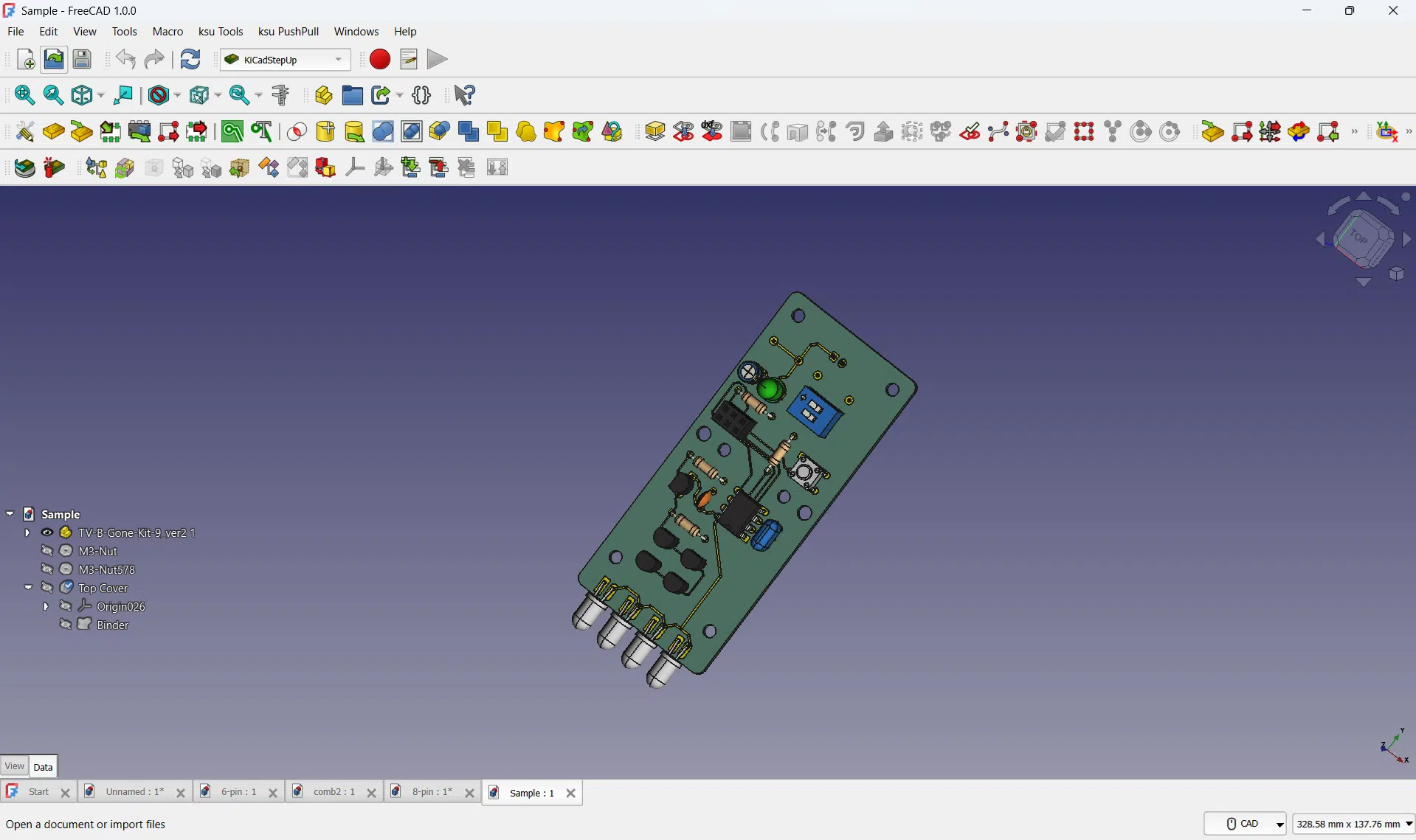
Want a convenient way to generate 3D PCB and component models for your KiCAD designs using FreeCAD? Learn about a useful FreeCAD workbench called KiCAD StepUp.
Introduction
Making an electronic project has its challenges especially when incorporating 3D models on them. Last time, you’ve learned How to Generate 3D Models in KiCAD. This blog taught you how to export your entire PCB (with components) to CAD software (such as FreeCAD) by converting it into a 3D model which was done entirely on KiCAD.
However, the process of conversion presents several challenges. There are so many nitty-gritty parameters to check. It would be convenient to have some sort of tool automating the process of 3D model conversion between the two software (KiCAD and FreeCAD). Fortunately, a tool exists, and this tool is called KiCAD Step Up for FreeCAD.
What is KiCAD Step Up
KiCAD StepUp is a FreeCAD Workbench that can both import and export KiCAD 3D PCB and component models automatically. This means the user can freely use the FreeCAD environment to model PCB outlines or component footprints made for KiCAD. This also frees the user from confusing and complicated conversion parameters during importing and exporting your 3D components or boards.
How to Use KiCAD Step Up
Install the KiCAD Step Up Add On in FreeCAD
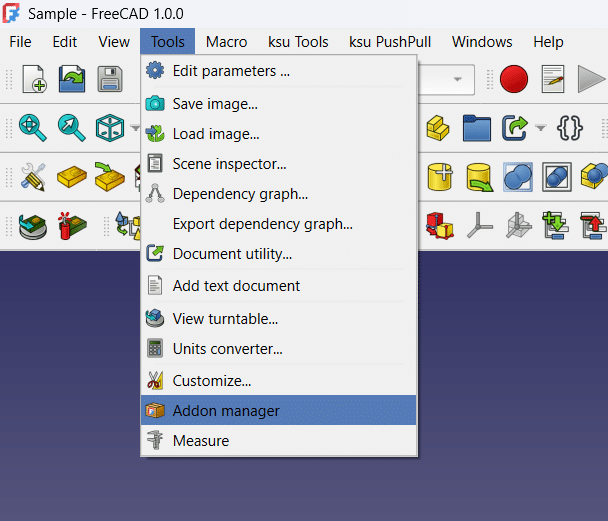
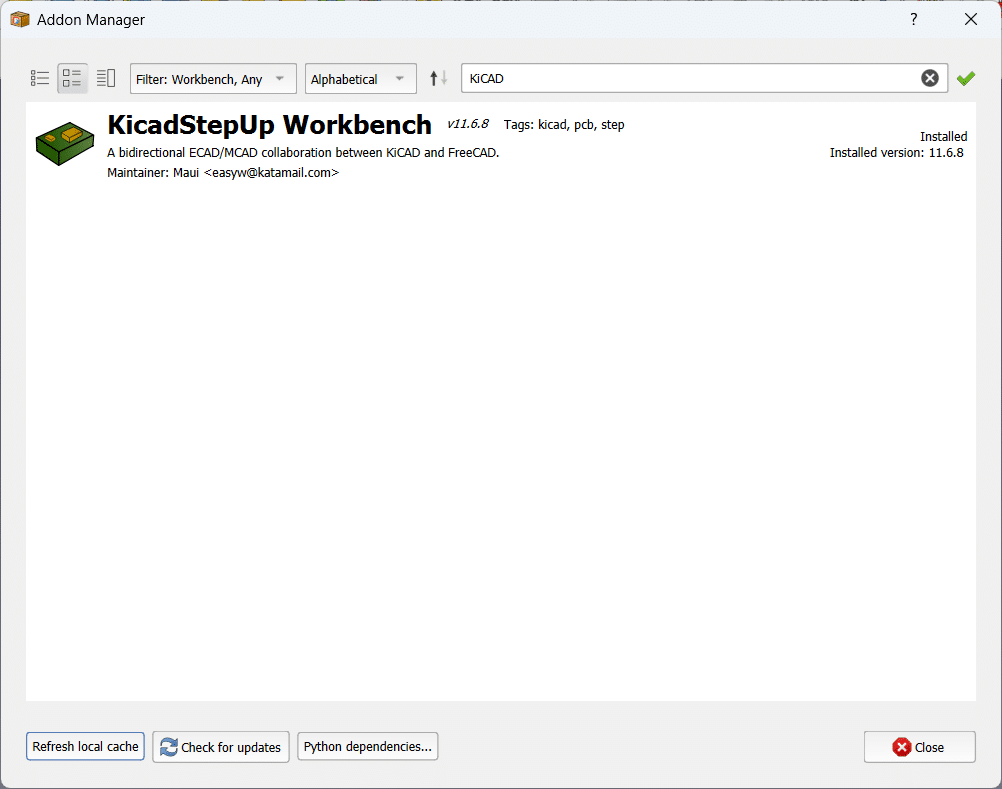
Install the KiCAD StepUp Workbench by going to Tools -> Addon manager and searching for KiCADStepUp Workbench.
MOdifying a Sample KiCAD PCB Board Edge
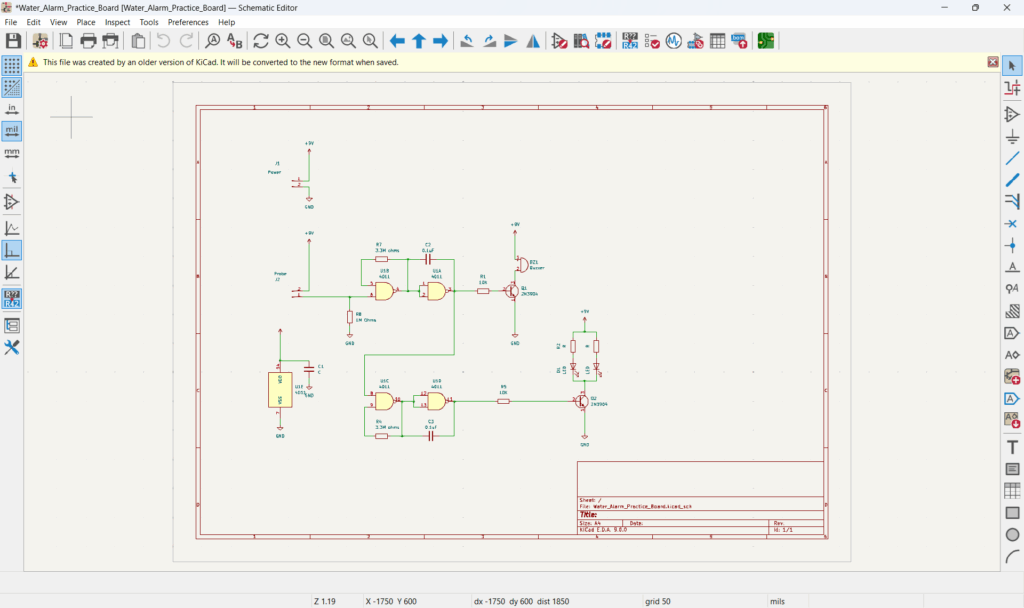
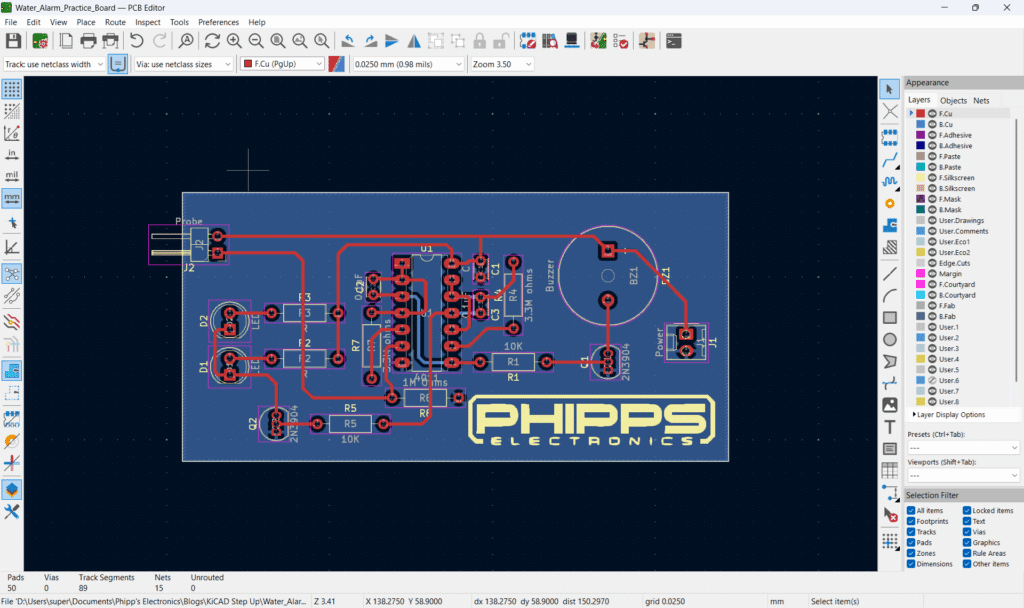
Here is a simple water alarm PCB with straight edge cuts and no mounting holes.
Load your Board in FreeCAD through KiCAD Step Up
Go to FreeCAD and then choose the KiCAD Step Up workbench. You can readily load your KiCAD PCB by pressing the Load Board icon in the toolbar.
Edit the Board Outline Through the Generated Sketch
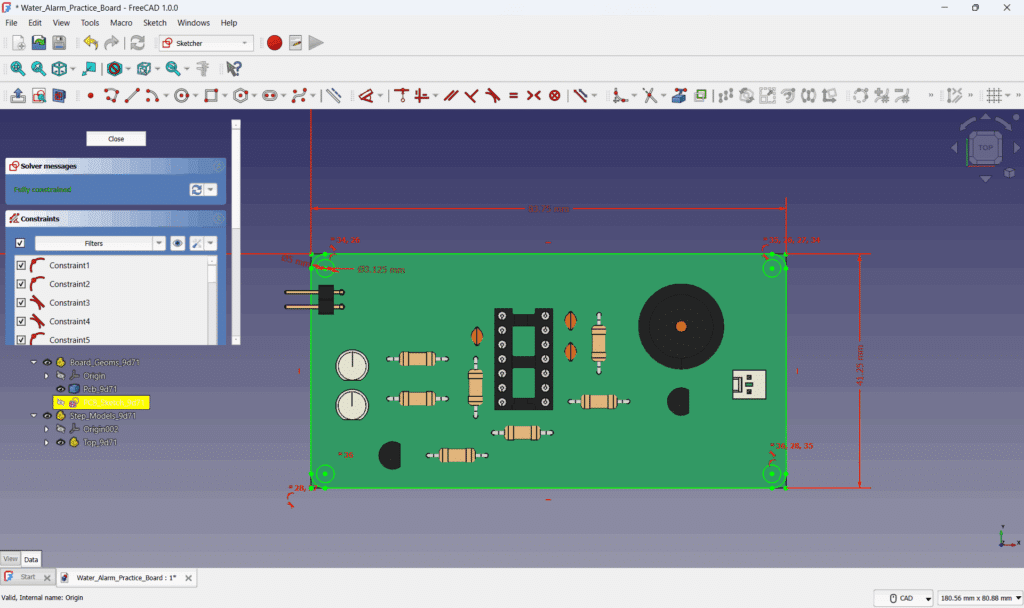
You can edit the board outline by going to the generated Board_Geoms_XXXX part. Here you’ll see several objects, such as the solid-filled PCB and the sketch of the PCB. You can double-click the PCB sketch to edit it.
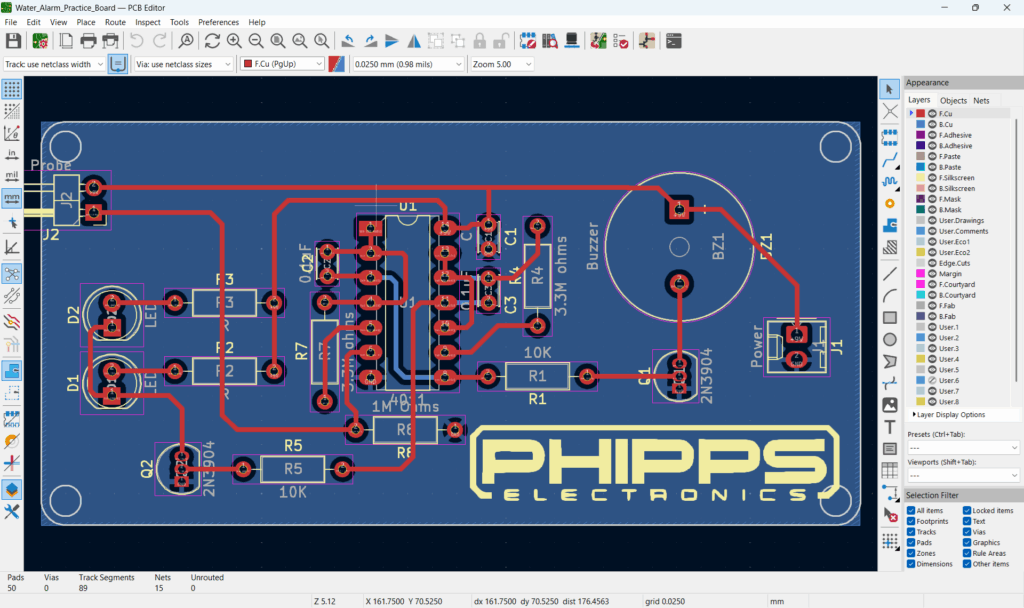
Below is an example of a board outline edited with mounting holes and corner fillets.
Push Sketch to PCB Edge
Next, close the sketch and do a Push Sketch to PCB by clicking the appropriate icon. Save the generated PCB file.
Re-open the Design in FreeCAD
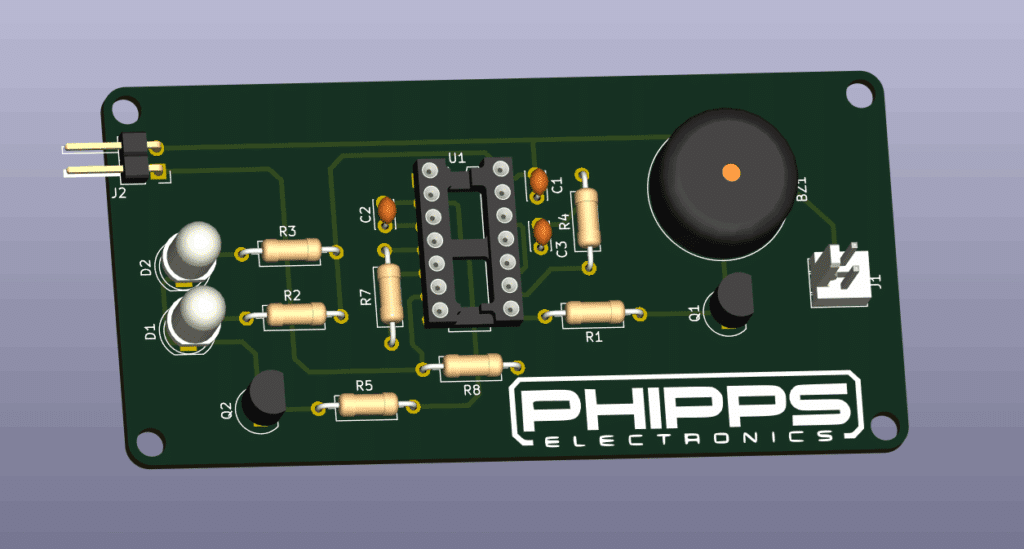
Close your previous design and open the newly generated one in KiCAD. You should see your new board outline now. Make necessary edits to finish your work.
Creating a 3D Model for a Footprint
In KiCAD, you would sometimes find footprints without a 3D model. This is a perfect scenario for using KiCAD Step Up.
Load the Footprint into FreeCAD
Load your chosen footprint by clicking the Load Footprint icon. Choose footprints from your KiCAD directory, such as: C:\Program Files\KiCad\9.0\share\kicad\footprints
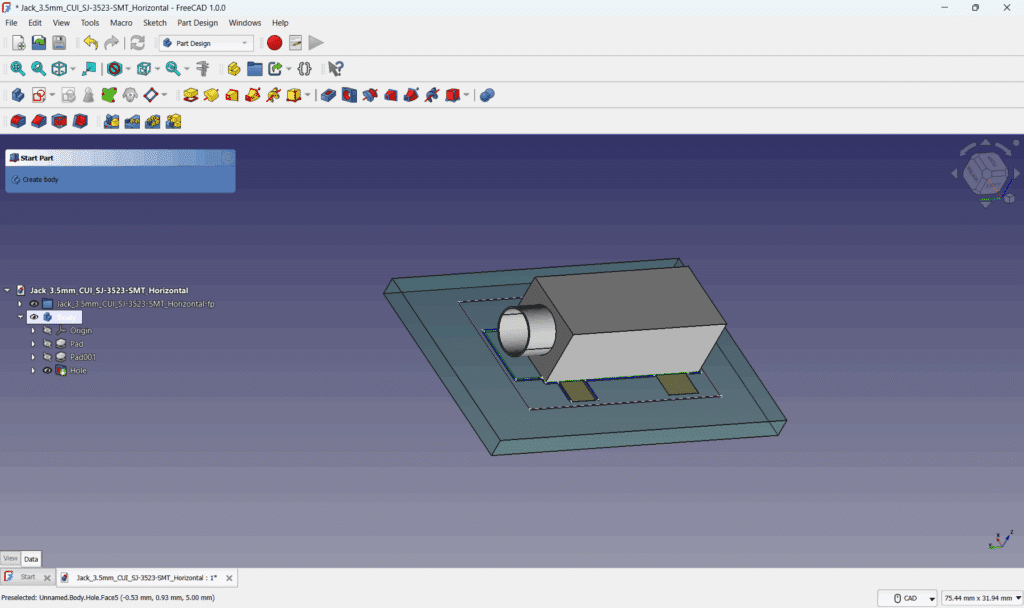
Create a Body and a Sketch for your 3D Model
Go to the Part Design Workbench and begin creating a Body and a Sketch for it.
Example Sketch and Padding
Here is an example Sketch and Padding.
Export the 3D Model
Going back to the KiCAD Step Up workbench, click the Export 3D Model icon and save it to your desired directory. Don’t forget to pick the body that you made. You may rename the body to your liking. KiCAD Step Up can choose materials, body colors, pin colors, etc., upon saving your 3D model.
Load the 3D Model in KiCAD
Finally, see the 3D model you generated in KiCAD.
Conclusion
The KiCAD StepUp Workbench is a versatile tool to be able to work on your KiCAD 3D models conveniently in FreeCAD. You’ll be able to modify your PCB Edge Cuts layer, create 3D models of your footprints, and even edit your footprints on FreeCAD.