Phipps Electronics

Order within the next 

FREE SHIPPING OVER $199

50,000+ ORDERS

WORLDWIDE SHIPPING

SSL SECURED

ESP32 – Get Time from the Internet

Contents

Want to synchronize the current date and time to your ESP32 device? Don’t want to always do manual time adjustments. Read along to know how your ESP32 can get the actual time from the internet.

Introduction

Some projects need an accurate time source to be able to work correctly. For example, you’re making a table top clock, controlling some lights at a specific time during the day, or logging some data along with a date and time value. With this, a microcontroller that synchs to an accurate time source is necessary.

What's Needed to Run an Actual Clock for your MCU

MCU RTC and 32 kHz Crystal

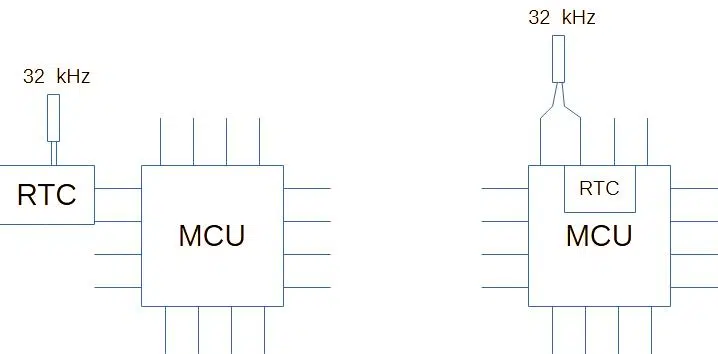
An MCU can have its own system clock through an internal or external oscillator. However, these oscillators are meant as a clock source to run code along its peripherals. To run an actual clock for time keeping purposes, you may need something more precise. You may need both an RTC module (internal or external to an MCU) and a crystal that can generate a 1 second interval. Usually, a 32KHz crystal oscillator is used for this purpose. This oscillator frequency can then be divided by 2^15 to generate a precise 1 second pulse. 

RTC stands for Real-Time Clock. The RTC module can run an actual date and time clock. This hardware-based module can make a programmer’s life easier regarding timekeeping.

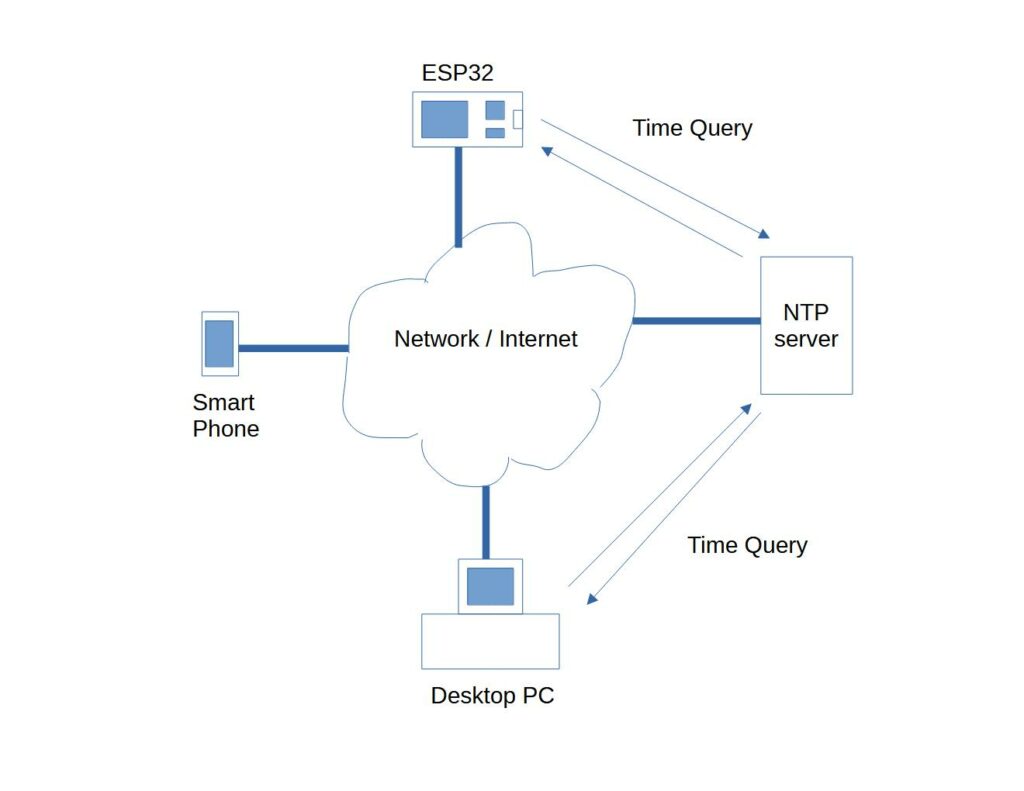
However, running an RTC can only do local timekeeping. You’ll need an external network resource (such as the internet) to automatically sync date and time to the actual date and time.

What's Needed to Synchronize the Clock of your MCU to the Internet Time

NTP Time Query

You’ll need to be able to access a network resource called NTP to synchronize your MCU clock to the internet time. NTP stands for Network Time Protocol. NTP servers are used to synchronize the clocks of computers over a network. Fortunately, advanced MCUs with networking or WiFi capabilities can connect to this resource through readily available libraries. Below are examples of NTP server resources:

  • pool.ntp.org
    time.nist.gov
     

Example Code for Fetching the Internet Time for an ESP32

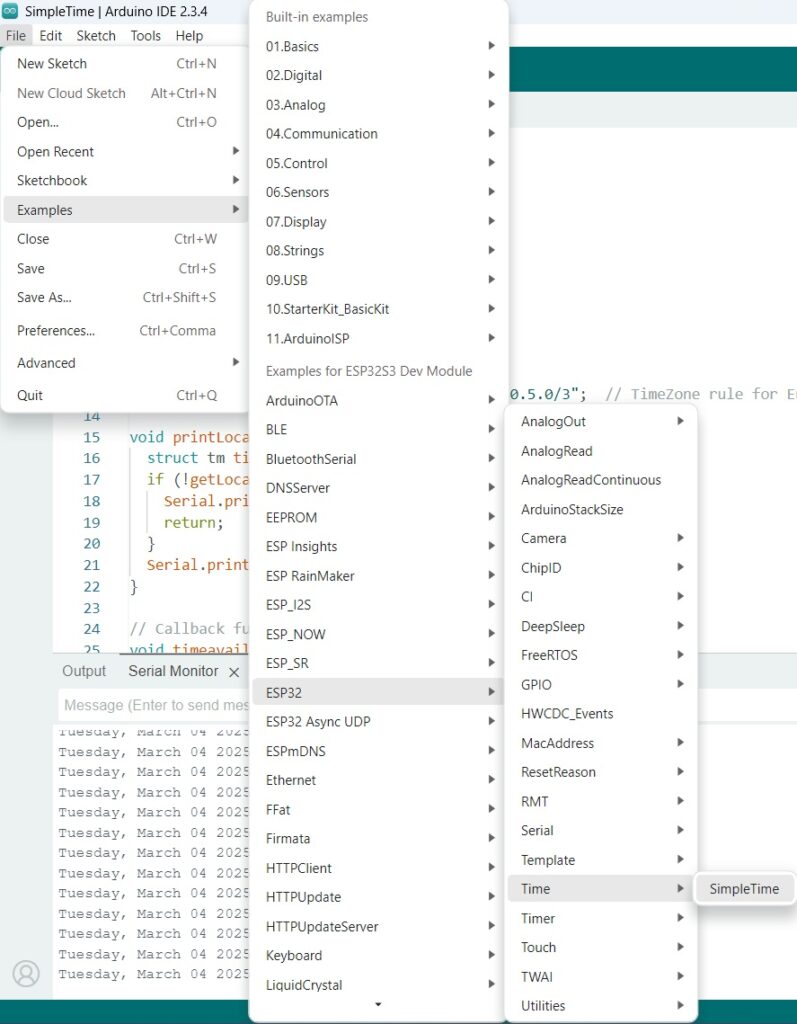
Fortunately, there is a ready example code to fetch the internet time for your ESP32. This code is called SimpleTime. If you have the ESP32 board files already installed in Arduino, choose your board then go to File -> Examples -> ESP32 -> Time -> SimpleTime.

ESP32 Example Time Code - SimpleTime

Examining the Code

				
					#include <WiFi.h>
#include "time.h"
#include "esp_sntp.h"

const char *ssid = "--------";
const char *password = "---------";

const char *ntpServer1 = "pool.ntp.org";
const char *ntpServer2 = "time.nist.gov";
const long gmtOffset_sec = 3600;
const int daylightOffset_sec = 3600;

const char *time_zone = "CET-1CEST,M3.5.0,M10.5.0/3";  // TimeZone rule for Europe/Rome including daylight adjustment rules (optional)

void printLocalTime() {
  struct tm timeinfo;
  if (!getLocalTime(&timeinfo)) {
    Serial.println("No time available (yet)");
    return;
  }
  Serial.println(&timeinfo, "%A, %B %d %Y %H:%M:%S");
}

// Callback function (gets called when time adjusts via NTP)
void timeavailable(struct timeval *t) {
  Serial.println("Got time adjustment from NTP!");
  printLocalTime();
}

void setup() {
  Serial.begin(115200);

  // First step is to configure WiFi STA and connect in order to get the current time and date.
  Serial.printf("Connecting to %s ", ssid);
  WiFi.begin(ssid, password);

  /**
   * NTP server address could be acquired via DHCP,
   *
   * NOTE: This call should be made BEFORE esp32 acquires IP address via DHCP,
   * otherwise SNTP option 42 would be rejected by default.
   * NOTE: configTime() function call if made AFTER DHCP-client run
   * will OVERRIDE acquired NTP server address
   */
  esp_sntp_servermode_dhcp(1);  // (optional)

  while (WiFi.status() != WL_CONNECTED) {
    delay(500);
    Serial.print(".");
  }
  Serial.println(" CONNECTED");

  // set notification call-back function
  sntp_set_time_sync_notification_cb(timeavailable);

  /**
   * This will set configured ntp servers and constant TimeZone/daylightOffset
   * should be OK if your time zone does not need to adjust daylightOffset twice a year,
   * in such a case time adjustment won't be handled automagically.
   */
  configTime(gmtOffset_sec, daylightOffset_sec, ntpServer1, ntpServer2);

  /**
   * A more convenient approach to handle TimeZones with daylightOffset
   * would be to specify a environment variable with TimeZone definition including daylight adjustmnet rules.
   * A list of rules for your zone could be obtained from https://github.com/esp8266/Arduino/blob/master/cores/esp8266/TZ.h
   */
  //configTzTime(time_zone, ntpServer1, ntpServer2);
}

void loop() {
  delay(5000);
  printLocalTime();  // it will take some time to sync time 🙂
}


Include the Necessary Header Files

Include the necessary header files, WiFi.h, time.h, and esp_sntp.h.

				
					#include <WiFi.h>
#include "time.h"
#include "esp_sntp.h"


Enter your Wifi SSID and Password

Enter your Wifi SSID and password on the code snippet asking for it.

				
					const char *ssid = "--------";
const char *password = "---------";


Include the NTP Servers

The two NTP server addresses are already given as example below in this example code.

				
					const char *ntpServer1 = "pool.ntp.org";
const char *ntpServer2 = "time.nist.gov


Input your Timezone through gmt offset sec

You’ll have to edit the gmtOffset_sec variable so that you can synch time to the timezone you want. This variable should be incremented in seconds. For example, if you are in Sydney, the value of this variable should be 3600 * 10, which equals the GMT time + 10 hours for AEST (Australian Eastern Standard Time). If you are in daylight saving time, this should be 3600 * 11 or the GMT time + 11 hours.

				
					const long gmtOffset_sec = 3600;
const int daylightOffset_sec = 3600;


Set a notification callback function called timeavailable

You can optionally set a callback that will be called when there is time adjustment via the NTP servers for automatic updates.

				
					  // set notification call-back function
  sntp_set_time_sync_notification_cb(timeavailable);


					// Callback function (gets called when time adjusts via NTP)
void timeavailable(struct timeval *t) {
  Serial.println("Got time adjustment from NTP!");
  printLocalTime();
}


Configure NTP Server Functionality

Use the configTime() function to configure NTP server functionality with its parameters. 

				
					  /**
   * This will set configured ntp servers and constant TimeZone/daylightOffset
   * should be OK if your time zone does not need to adjust daylightOffset twice a year,
   * in such a case time adjustment won't be handled automagically.
   */
  configTime(gmtOffset_sec, daylightOffset_sec, ntpServer1, ntpServer2);

  /**


Print the Time by using the getLocalTime() function

You’ll be able to set your local time by using the getLocalTime() function. A tm type structure is passed to this function (timeinfo) holding the necessary time and date values. Note that this function syncs the NTP time to the internal RTC of the ESP32. However, if you do not have internet, you may still access local time only through the ESP32’s RTC through getLocalTiime(). For the example below, getLocalTime() gets called in the printLocalTime() function during the callback timeavailable() declared before.

				
					void printLocalTime() {
  struct tm timeinfo;
  if (!getLocalTime(&timeinfo)) {
    Serial.println("No time available (yet)");
    return;
  }
  Serial.println(&timeinfo, "%A, %B %d %Y %H:%M:%S");
}


Here are the Serial.println format parameter equivalents for the timeinfo variable:

  • %A: Full weekday name (e.g., Monday)

  • %B: Full month name (e.g., January)

  • %d: Day of the month (01 to 31)

  • %Y: Year (e.g., 2025)

  • %H: Hour in 24-hour format (00 to 23)

  • %M: Minute (00 to 59)

  • %S: Second (00 to 59)

Actual Output

SUBSCRIBE FOR NEW POST ALERTS

Subscribe to be the first to know when we publish a new article!
List Subscriptions(Required)

POPULAR POSTS

Scroll to Top