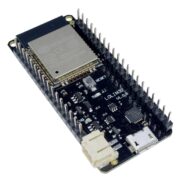
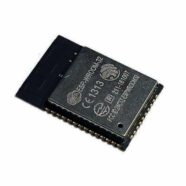
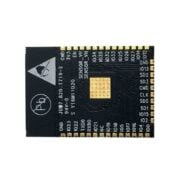
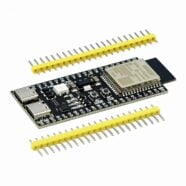
Read through this article if you’re interested in making your own PCB design for your ESP32 modules.
Introduction
Creating a PCB for a wireless module, such as an ESP32, can present significant challenges. There are several design rules you should follow. These rules pertain to the device’s power, functionality for wireless, start-up, and programming operations. This article will help you get used to ESP32 PCB design.
Note: If you want to know more about the internal structure of an ESP-32-S3-WROOM, you can read ESP32 WROOM Series – Getting Started.
Note: To understand KiCAD PCB design, it’s recommended to go through the KiCAD PCB Design series.
Â
Some Guidelines When Making your Board
Rules for Wireless
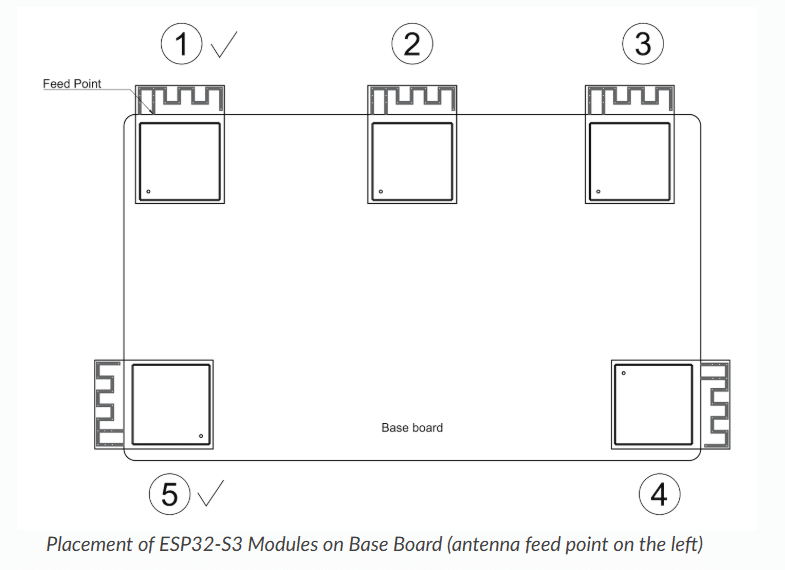
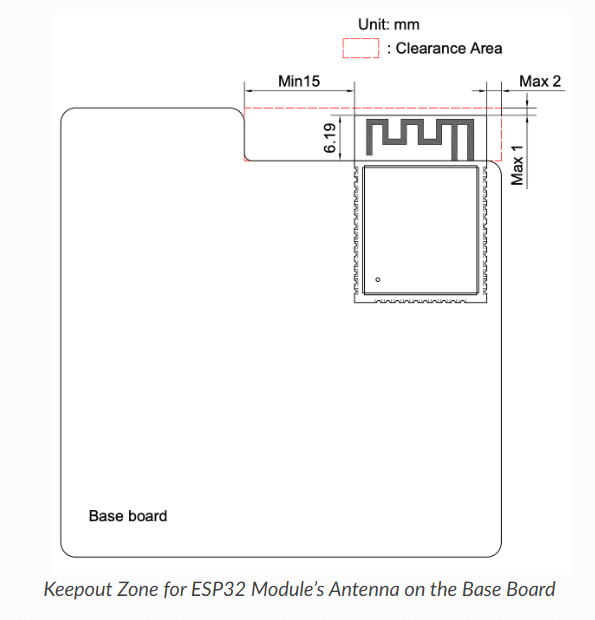
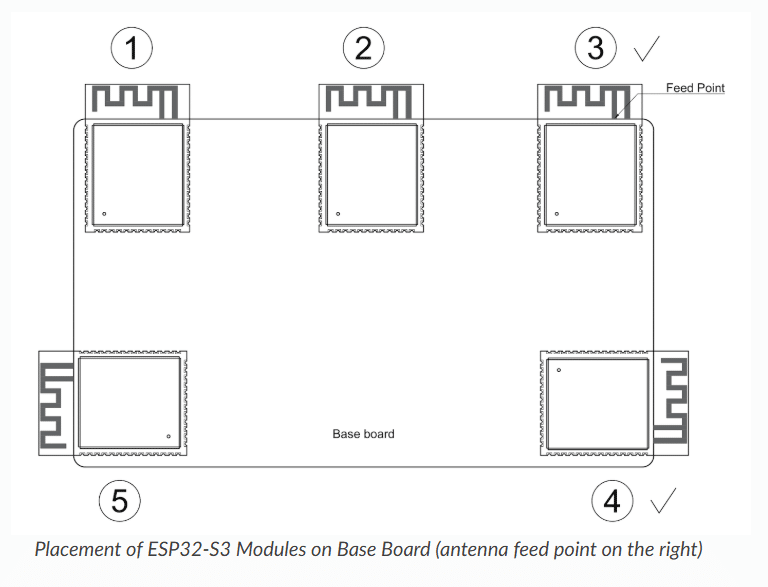
First, there are rules you should follow for wireless. The Espressif website explicitly states these rules.
Above, you’ll see the ideal placement of the ESP32 WROOM module. It should be close to the board edge, and the antenna part should have clearance below. The “Feed Point” is closest to the board edges. If you can’t avoid doing this, you should prepare a clearance of at least 15 mm in all directions.
Power Supply
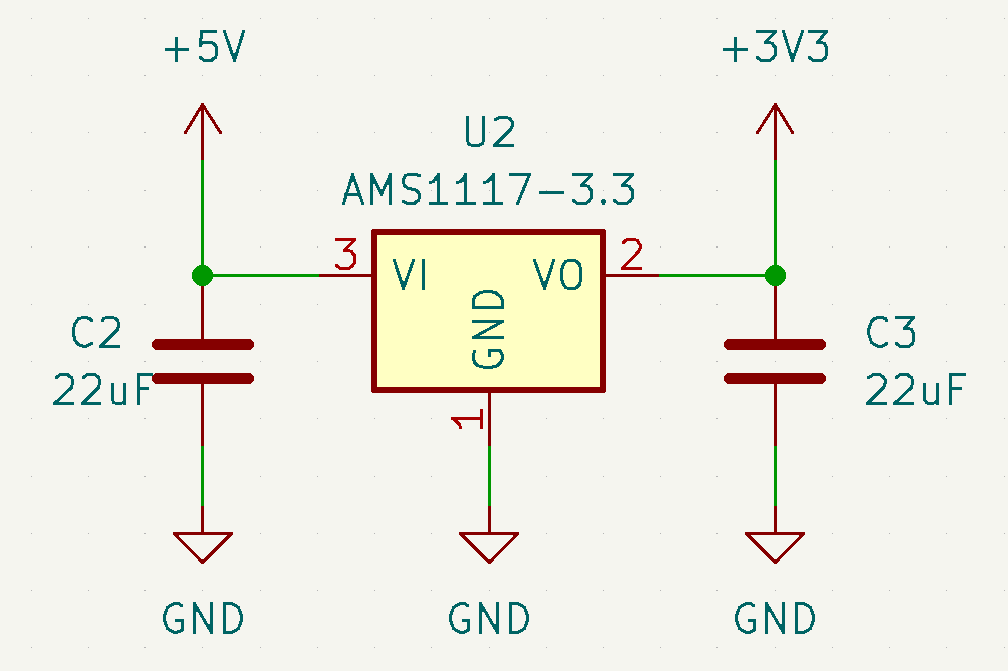
Usually, you’ll just need a small off-the-shelf LDO (AMS1117) to supply the needed 3.3V of the ESP32-S3 coming from the 5V USB source. You’ll need some bypass capacitors for this LDO (usually in the range of 10uF to 22uF). You may use this power source for other low-power devices/sensors on this board provided it can handle all the current requirements.
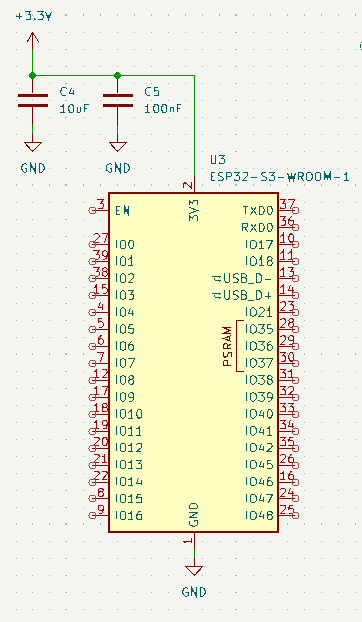
Insert a bulk capacitor (10uF) and then a filter capacitor (100nF) before the 3.3V source reaches the power pin of your ESP32-S3. The 10uF cap is in charge of low frequency while the 100nF for higher ripples.
Startup Enable or Reset Pin
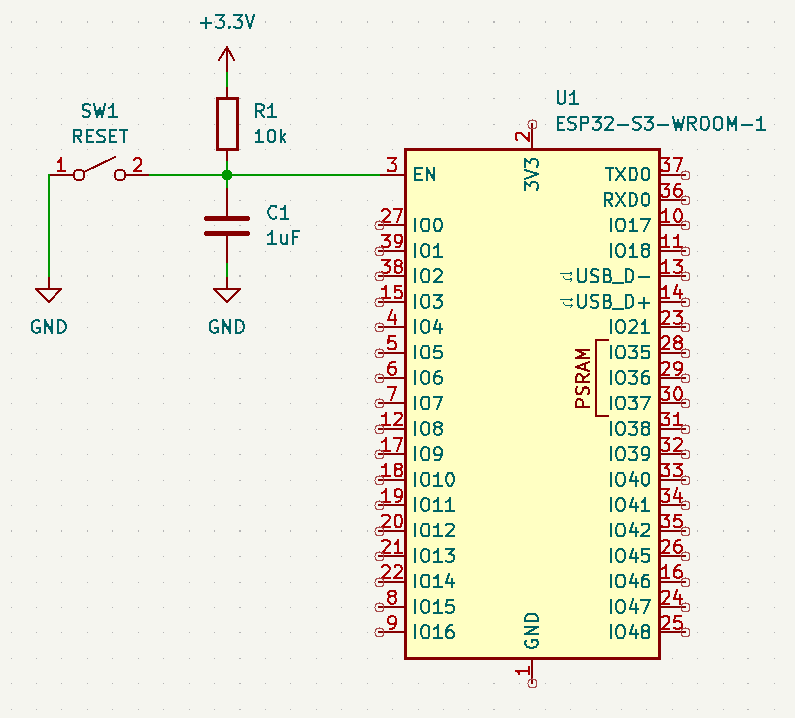
An ESP32 has an EN (Enable pin) that acts as a reset. This pin is useful during power-up to ensure the power line is good before enabling the device. With this, add an RC filter to this pin (10k and 1uF, respectively). This pin is also useful (when resetting) together with the BOOT pin when selecting the boot mode of the device. With this, insert a switch to this EN or RESET pin.
Above, you’ll see the typical circuit layout for the EN pin.
Bootstrapping Pins
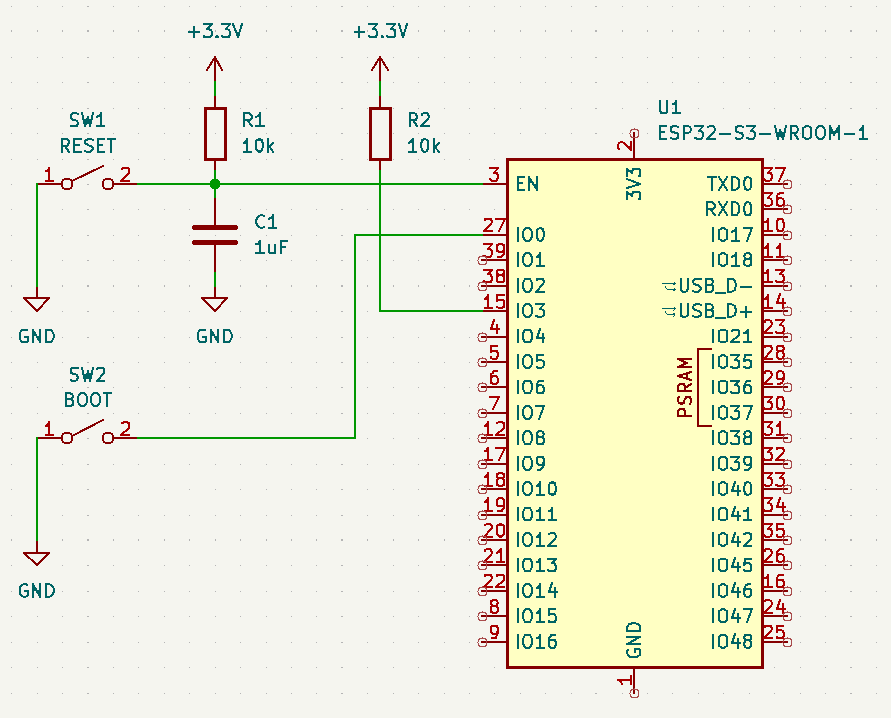
Bootstrapping pins determine the boot mode of the ESP32 during startup. With this, it’s important to know what mode you want to be in at that moment. Below, you’ll see the important bootstrapping pins to consider on your ESP32-S3 module. In bootloader mode, the device is ready for programming. In normal mode, the device is ready to run.
| Pin | Function | State | Comment |
|---|---|---|---|
| GPIO0 | Bootloader or Normal Mode | Low during reset (Bootloader Mode) | Has internal pull-up during reset |
| GPIO46 | Low to enter bootloader mode | Low or NC (Bootloader Mode) | Has internal pull-down during reset |
| GPIO3 | SPI Flash voltage (1.8V or 3.3V) | High for 3.3V, Low for 1.8V | Floating |
| GPIO45 | ROM serial debug output | High to enable serial output | Has internal pull-up during reset |
Notice the BOOT pin has a switch and should be used together with the RESET pin to determine what BOOT mode the user wants. Also, since some pins have an internal pull-up/down, external resistors are omitted. If there is no pull-up/down resistor, you should populate one (such as in GPIO3).
Programming Pins
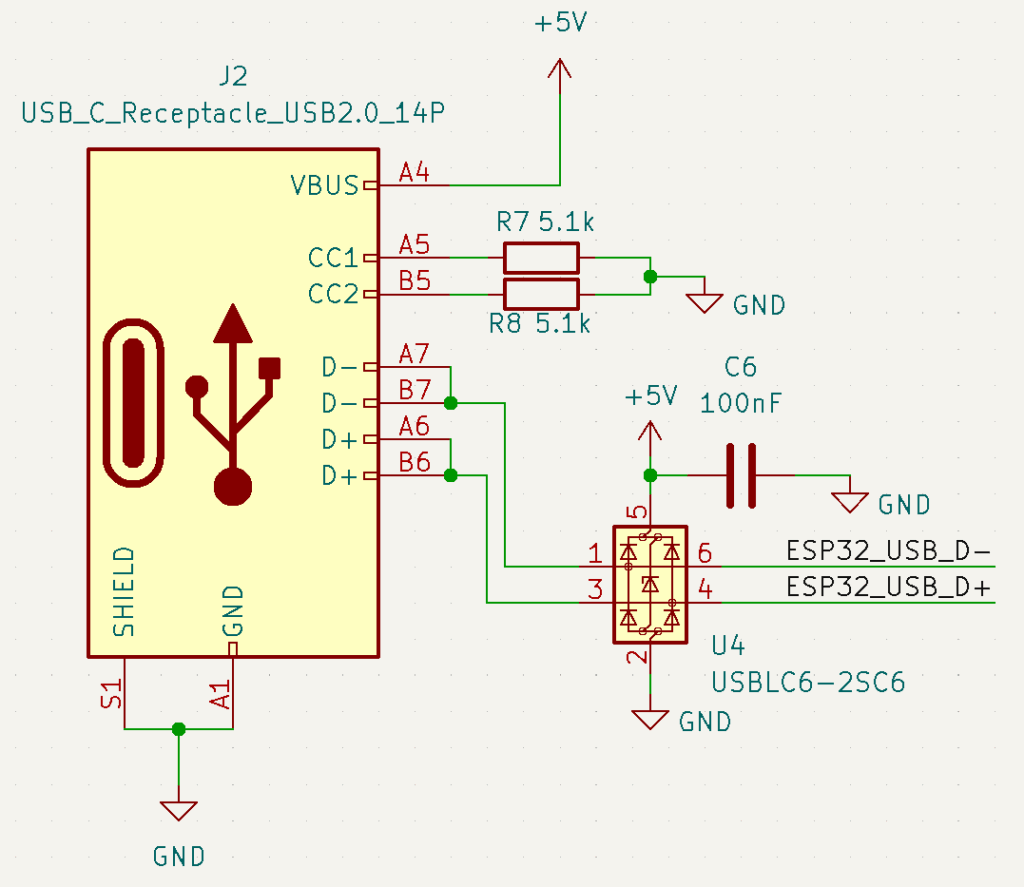
The ESP32-S3 can be physically programmed through JTAG, UART, or the native USB pins. This means you have to ready some of these ports so you can successfully program your ESP32 device. If you want to program with USB-C, you’ll have to learn some basic USB-C concepts. Additionally, you can ready an ESD protection component (such as the USBLC6-2SC6 from ST Microelectronics) to protect the USB port of the ESP32-S3.
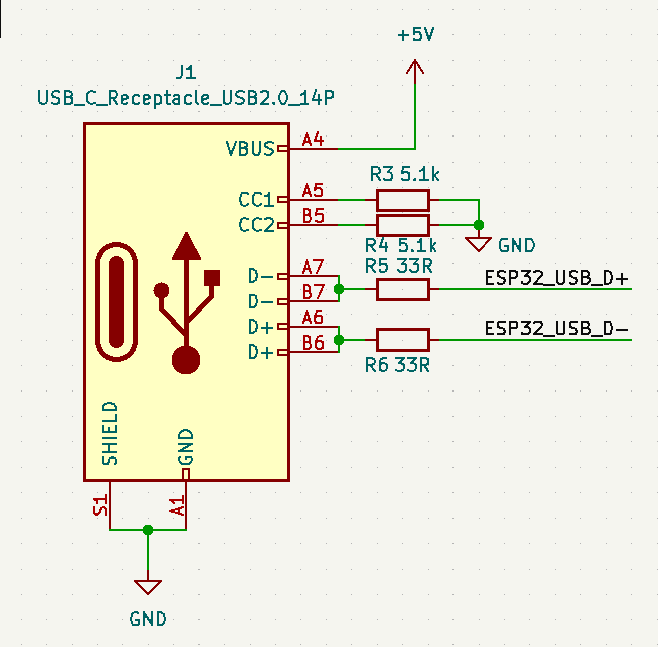
For your info, the CC1 and CC2 pins of the USB-C are pulled to ground via 5.1k resistors. This indicates that the USB device is a downstream port. Additionally, you’ll see there are two D- and D+ ports. These are meant to be because USB-C is reversible. You can connect USB-C either way. With this, connect the two D- together as well as the D+.
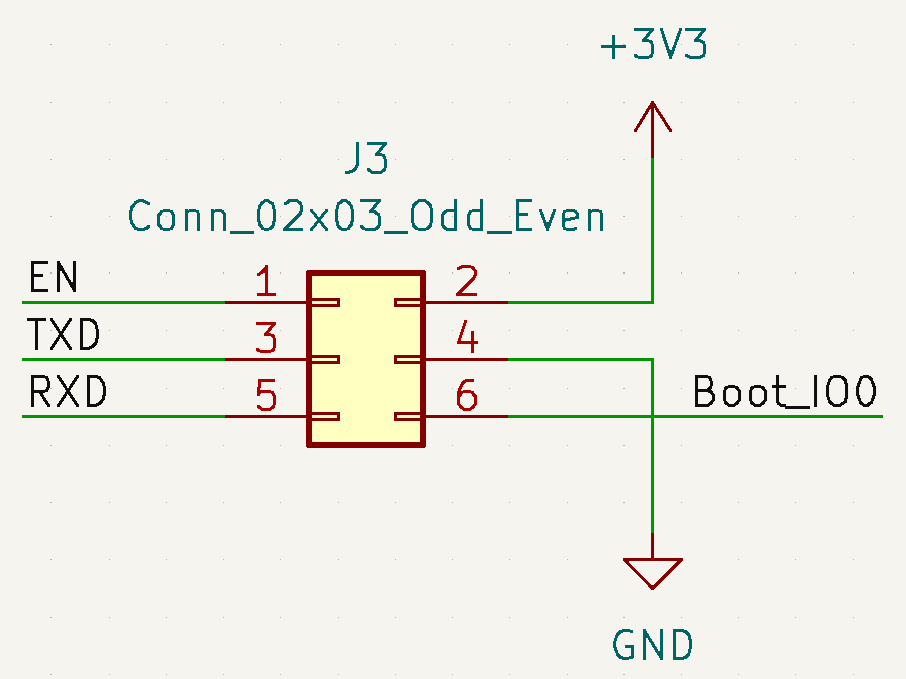
That being said, you can still program your ESP32-S3 the traditional way using UART. Note that to enter bootloader mode, you’ll need to hold the BOOT pin while pressing and releasing the RESET button. However, by using a connector like the one below, you should be able to connect the BOOT and RESET pin through the DTR and RTS pins of the UART connector, respectively. In this way, you’ll be able to automate programming.
Now that you’ve learned the basic rules of the ESP32 PCB design, you can now create a full schematic together with a PCB layout. This will be discussed in the next blogs.
SHOP THIS PROJECT
-
ESP32-CAM WiFi Bluethooth Development Board with OV2640 Camera Module
$31.95Original price was: $31.95.$29.95Current price is: $29.95. Add to cart